PyQt windows often have a toolbar QToolBar, besides a file menu. The toolbar contains some buttons. In a web browser those buttons may be back, forward, refresh, home. In a text editor open, save and so on.
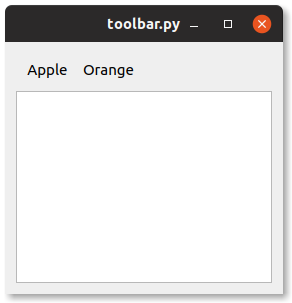
In this article you'll learn how to add a toolbar to your window.
Practice now: Test your Python skills with interactive challenges
Toolbar
QToolBar example
The program below creates a window with a toolbar QToolBar with buttons QToolButton. You can add a toolbar to any PyQt window. It also adds textbox.
The toolbar is added to a layout QGridLayout and the buttons QToolButton to the QToolBar.
from PyQt5.QtWidgets import *
import sys

class Window(QWidget):

    def __init__(self):
        QWidget.__init__(self)
        layout = QGridLayout()
        self.setLayout(layout)

        # Create pyqt toolbar
        toolBar = QToolBar()
        layout.addWidget(toolBar)

        # Add buttons to toolbar
        toolButton = QToolButton()
        toolButton.setText("Apple")
        toolButton.setCheckable(True)
        toolButton.setAutoExclusive(True)
        toolBar.addWidget(toolButton)
        toolButton = QToolButton()
        toolButton.setText("Orange")
        toolButton.setCheckable(True)
        toolButton.setAutoExclusive(True)
        toolBar.addWidget(toolButton)

        # Add textfield to window
        tbox = QPlainTextEdit()
        layout.addWidget(tbox)

app = QApplication(sys.argv)
screen = Window()
screen.show()
sys.exit(app.exec_())
Practice now: Test your Python skills with interactive challenges