Selenium webdriver can enter keypresses or type on any webpage. Selenium is the Python module to automate web browsers. The web driver is connected to both the web browser and the Python code.
The selenium webdriver starts the browser, the browser loads the webpage, selects the textbox and types.
Practice now: Test your Python skills with interactive challenges
keyboard
selenium keyboard
To use keypress in selenium, first you need to import some stuff from the selenium module:
from selenium.webdriver.common.by import By
from selenium.webdriver.common.keys import Keys
In the example below, a web browser is started. Then it searches for an HTML element by its id (elements often have a unique id). We grab the html element by its unique identifier like this:
input=browser.find_element_by_id("searchInput")
Then the method .send_keys() is used to type into the element. Don't forget to also send the enter or return key if necessary.
input.send_keys("Python")
input.send_keys(Keys.ENTER)
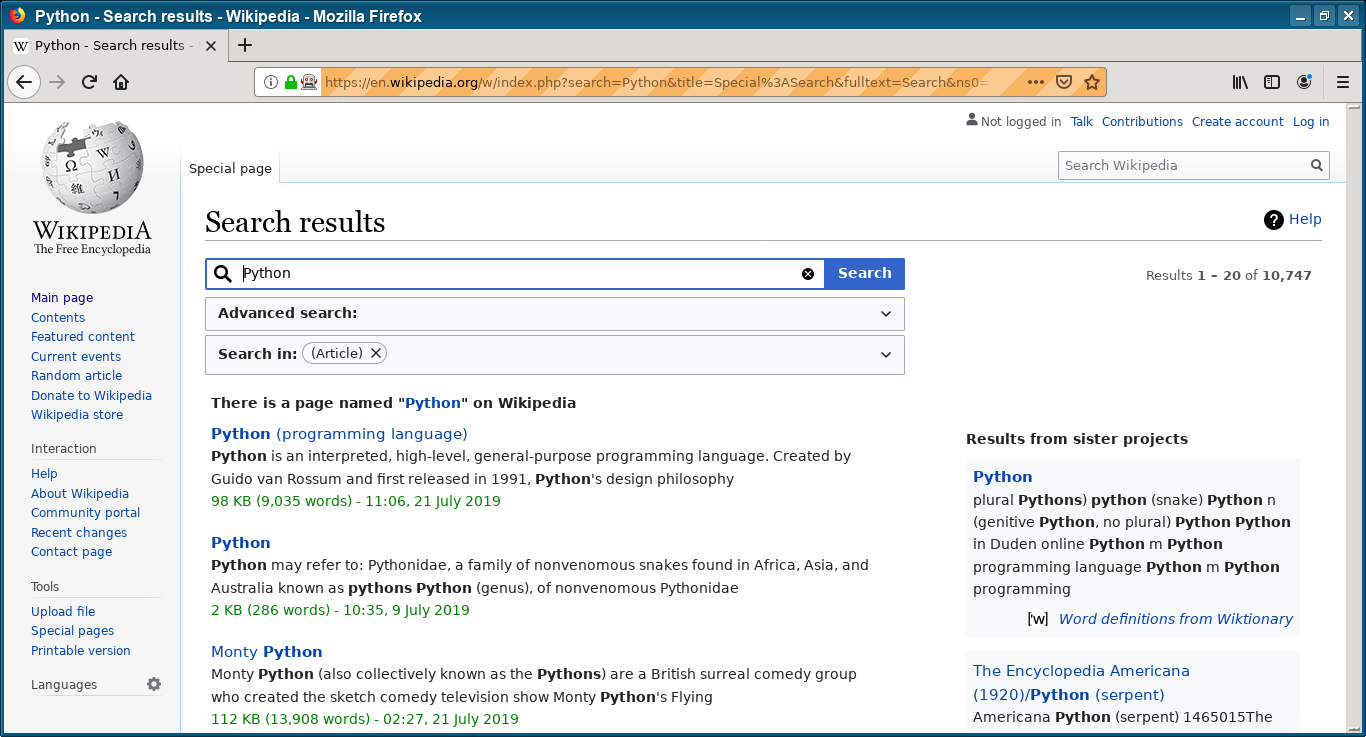
The selenium keyboard code example below does all that. In this example it does an automated searh on wikipedia, but the principle works on any site.
# -*- coding: utf-8 -*-
from selenium import webdriver
from selenium.webdriver.common.by import By
from selenium.webdriver.common.keys import Keys
from selenium.webdriver.support import expected_conditions as EC
from selenium.webdriver.support.wait import WebDriverWait
import time

browser=webdriver.Firefox()
try:
        browser.get("https://en.wikipedia.org")
        print(browser.title)
        input=browser.find_element_by_id("searchInput")
        input.send_keys("Python")
        input.send_keys(Keys.ENTER)
        wait=WebDriverWait(browser,10)
        wait.until(EC.presence_of_element_located((By.ID,"content")))
        print(browser.title)
        #print(browser.get_cookies())
        #print(browser.page_source)
        time.sleep(10)
finally:
        browser.close()
Practice now: Test your Python skills with interactive challenges