The program "Hello World" with PyQT, a module for creating desktop apps. In this article you'll learn how to create the "hello world" app in PyQt.
If you want to make a desktop app or graphical user interface, PyQT is a good module for that. Before starting this tutorial, make sure you have PyQt5 installed.
Practice now: Test your Python skills with interactive challenges
PyQt Hello World
Example
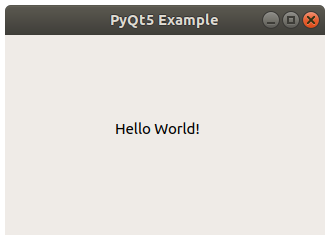
The program below creates the "hello world" window.
import sys
from PyQt5.QtWidgets import QApplication, QWidget, QLabel
from PyQt5.QtGui import QIcon
from PyQt5.QtCore import pyqtSlot

def window():
   app = QApplication(sys.argv)
   widget = QWidget()

   textLabel = QLabel(widget)
   textLabel.setText("Hello World!")
   textLabel.move(110,85)

   widget.setGeometry(50,50,320,200)
   widget.setWindowTitle("PyQt5 Example")
   widget.show()
   sys.exit(app.exec_())

if __name__ == '__main__':
   window()
Practice now: Test your Python skills with interactive challenges
How it works
PyQT is initialized with the code below:
app = QApplication(sys.argv)
widget = QWidget()
Text cannot be added immediately to a window. It has to be added to a label.
A label is a widget that can show text or images. These lines create a QLabel, set the labels text and position (horizontal, vertical).
textLabel = QLabel(widget)
textLabel.setText("Hello World!")
textLabel.move(110,85)
Now you should show the window.
Set the starting position (50,50) and the window size (320,200) with the method setGeometry().
widget.setGeometry(50,50,320,200)
Then you want to show the window! Give it a title with setWindowTitle() and display it with show().
widget.setWindowTitle("PyQt5 Example")
widget.show()
Practice now: Test your Python skills with interactive challenges